
If you are still unsure how to enter your IPTV subscription details into your device, then you are in the right place.
In this guide, we will walk you through the essential steps of how to setup IPTV on Android TV, iOS, and Windows devices.
By following this article to the end, you’ll learn how to get started with IPTV, configure your login credentials (such as M3U or URL provided by your IPTV provider), and start watching IPTV channels and on-demand content smoothly on any media player or IPTV application.
Table of Contents
What is IPTV?
Internet Protocol Television (IPTV) is considered one of the newest and most popular ways to watch TV channels today. Instead of relying on traditional methods such as cable or satellite dishes, IPTV can be watched over a stable internet connection. With an IPTV service, your iptv provider gives you access to channel playlists in formats like M3U or Xtream Codes, which allow your device to organize live TV channels and on-demand content.
You simply take the login credentials or playlist URL provided by your iptv service provider, and upload them to a compatible media player or iptv application—such as IPTV Smarters Pro, Google TV, Android TV, or any smart TV. Once set up, you can enjoy a rich library of live channels, VOD movies, TV series, and more.
However, keep in mind that a strong and stable Wi-Fi or router connection is essential. Without a reliable internet connection, your streaming might lag, freeze, or buffer. Before getting started with IPTV, ensure your network is functioning well to enjoy the best viewing experience.
Setting Up IPTV on Android TV Devices
Download an IPTV-Compatible Application for Android TV
The first step is to download an iptv application that works specifically with Android TV. Not all apps available for phones or tablets run properly on smart TV systems, and some may not appear in the Google Play store for your device at all.
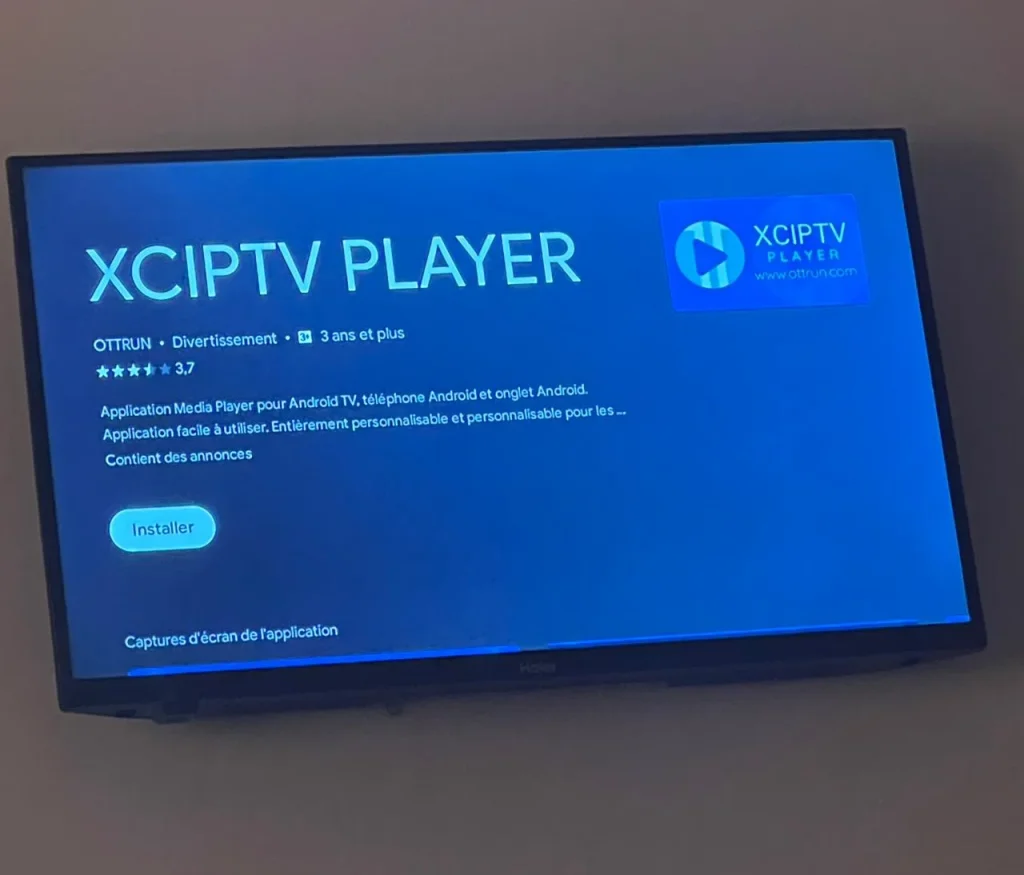
You can look into our Xciptv Player Review (Honest Opinion)
After installing an IPTV application that is compatible with your Android TV, the next step is to enter your IPTV subscription details. Your iptv service provider will have given you either an M3U playlist link or Xtream Codes login credentials.
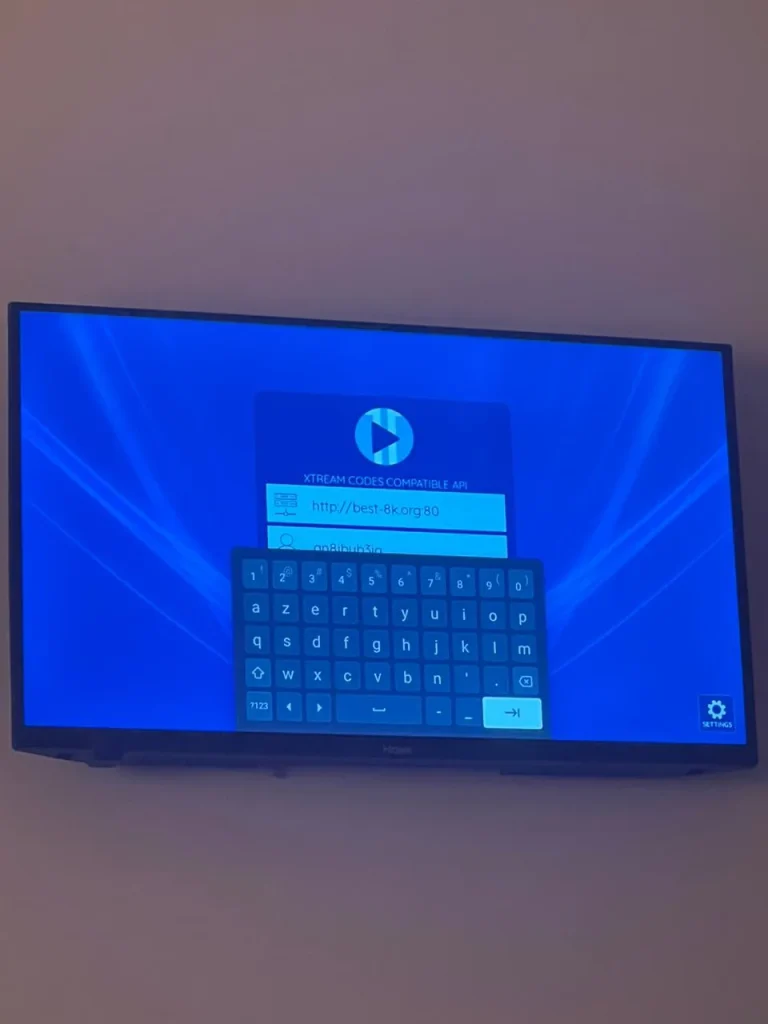
Once you have entered your IPTV login credentials, the application will automatically begin loading the IPTV content linked to your account. After a short moment, the interface will display your live TV channels, VOD movies, series, and the rest of the channels and on-demand content included in your iptv subscription.
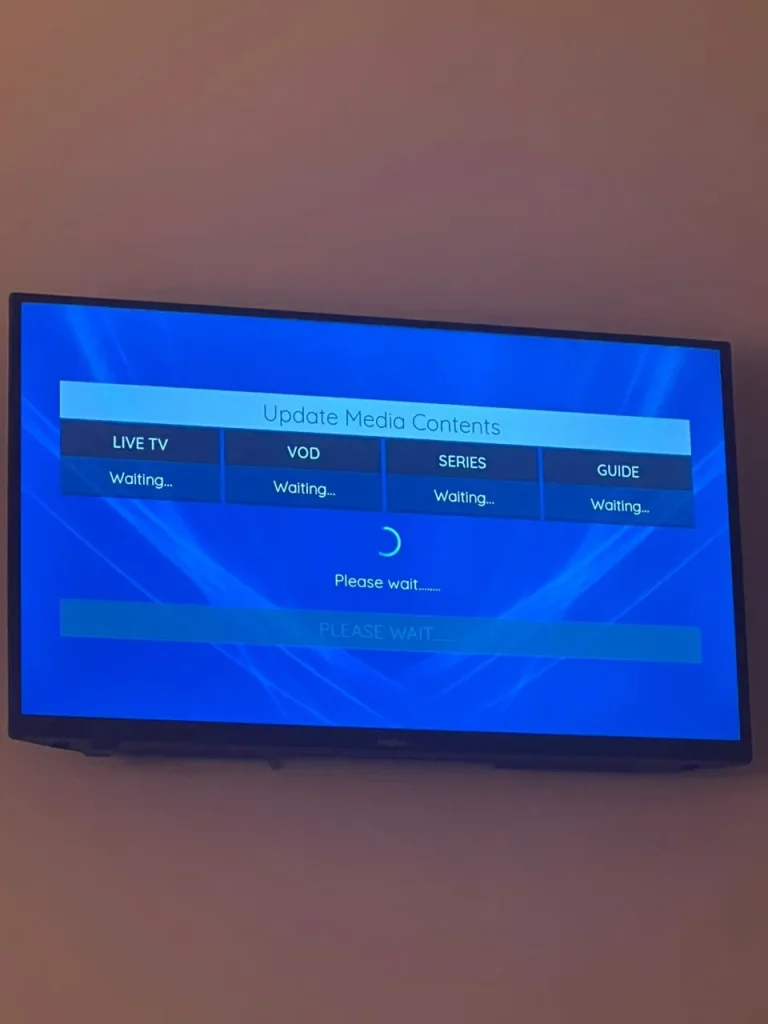
After that, your IPTV subscription content will appear clearly and neatly organized, depending on the layout of the IPTV application you are using. You’ll be able to easily navigate live channels, VOD libraries, and other categories, making watching IPTV on your smart TV straightforward and user-friendly.
Setting Up IPTV on iOS Devices (iPhone / iPad / Apple TV)
iOS devices are also an excellent choice for IPTV, as IPTV works smoothly and efficiently on them. One reason is the availability of reliable and high-quality IPTV applications designed specifically for Apple devices. Many of these apps are exclusive to iOS and are not available on Android TV or other systems.
For example, one of the most popular choices is GSE IPTV, a powerful and versatile IPTV media player.
To get started, simply open the App Store on your iPhone, iPad, or Apple TV, search for GSE IPTV, and install the app.
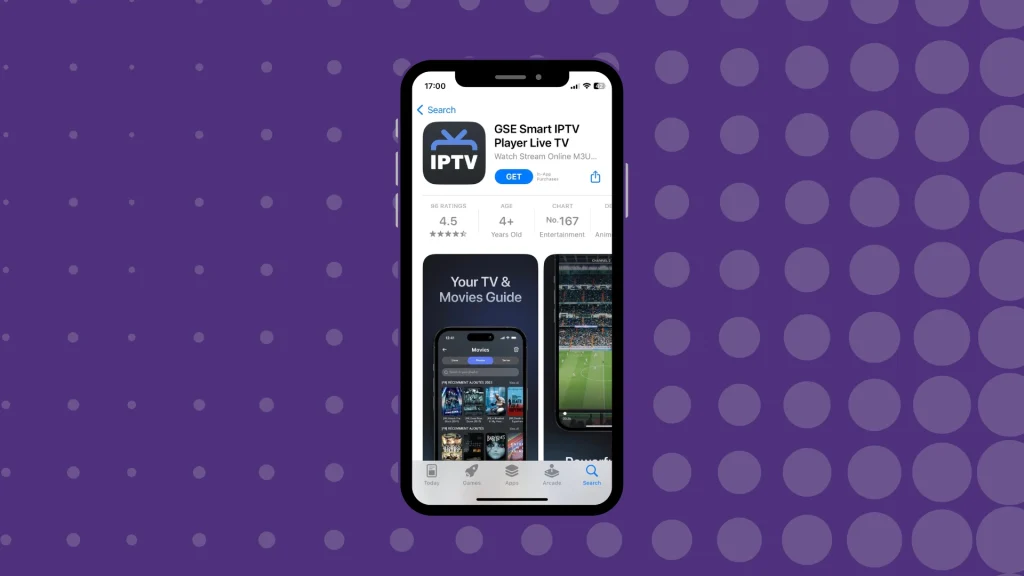
After downloading the app from the App Store, you’ll notice it has a straightforward, self-explanatory interface, so you don’t need technical experience to start using IPTV.
All you need to do is follow the on-screen instructions inside the application and enter your M3U playlist URL or iptv login provided by your iptv service provider.
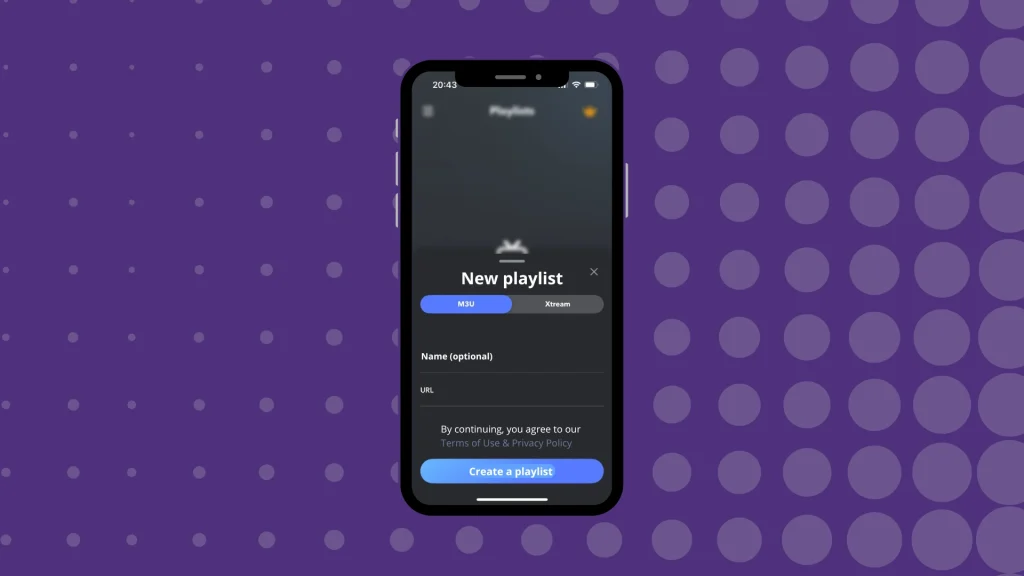
Many users, especially when using the app for the first time, assume there is a problem with the iptv subscription or the iptv application because the content takes a little time to load. However, this is entirely normal.
During the first setup, the app needs a few moments to download and organize your live channels, EPG, and VOD library. Just be patient and let the media player finish loading. Once it completes, you will be able to stream live and browse your channels and on-demand content without issues.
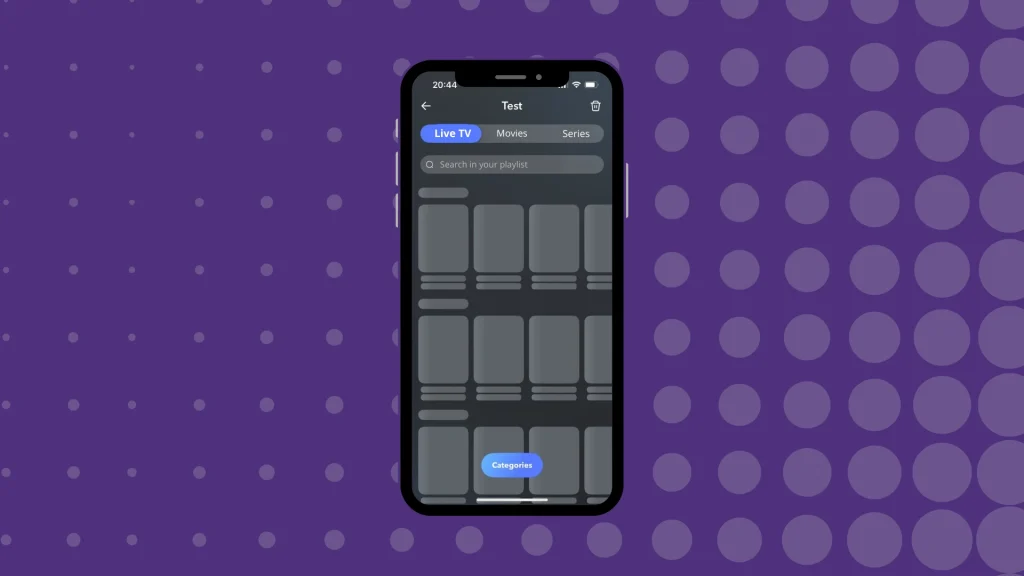
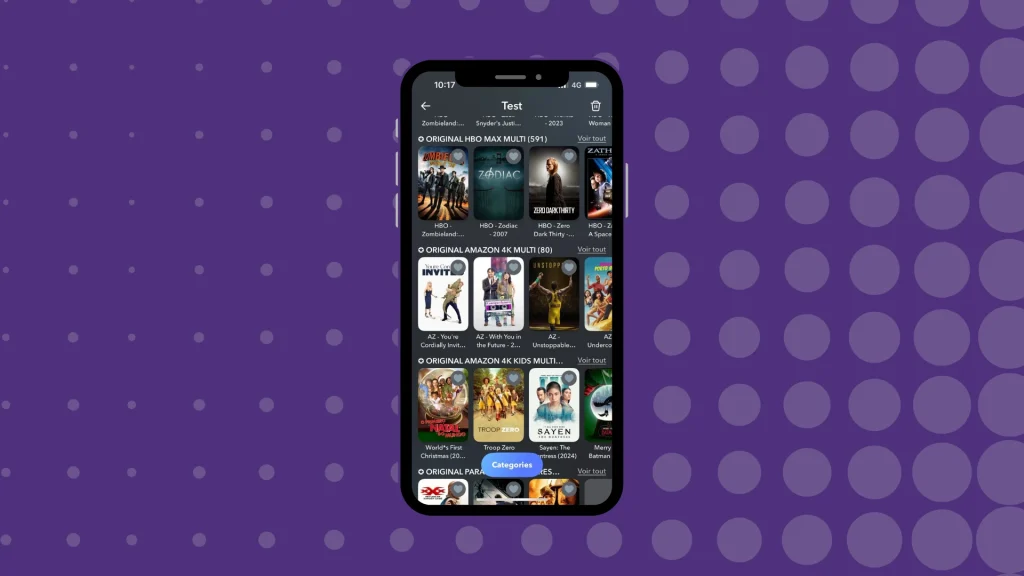
Once the loading process is complete, the application will automatically display all your IPTV content—including live TV channels, movies, and series—in a clean and organized layout. At this point, you can easily browse through categories and start watching IPTV smoothly on your iOS device, enjoying a seamless and straightforward viewing experience.
Setting Up IPTV on Windows
On Windows devices, many applications work very well for Internet Protocol television. One of the simplest and most reliable options is ZEN Player, as it doesn’t require a complex setup.
Download the app from the Microsoft Store.
All you need to do is enter your M3U playlist URL or the Xtream Codes login credentials provided by your iptv service provider. After that, the app will load your iptv channels, and you can start watching IPTV without interruptions.
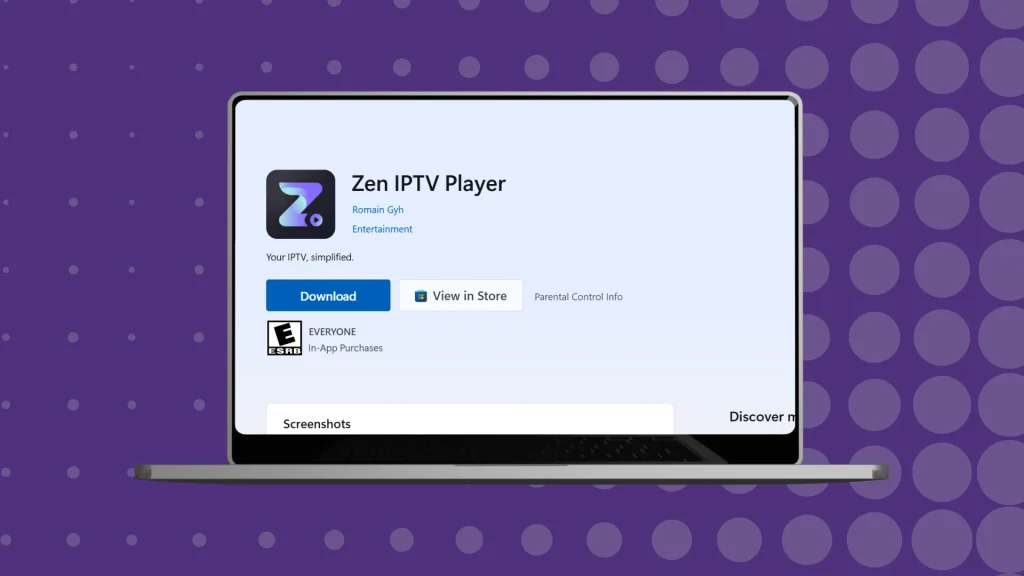
After installing the application, enter your IPTV subscription details. It is generally recommended to use the M3U playlist URL provided by your iptv service provider, as this format is widely supported and makes it easier for the app to organize your live channels and on-demand content.
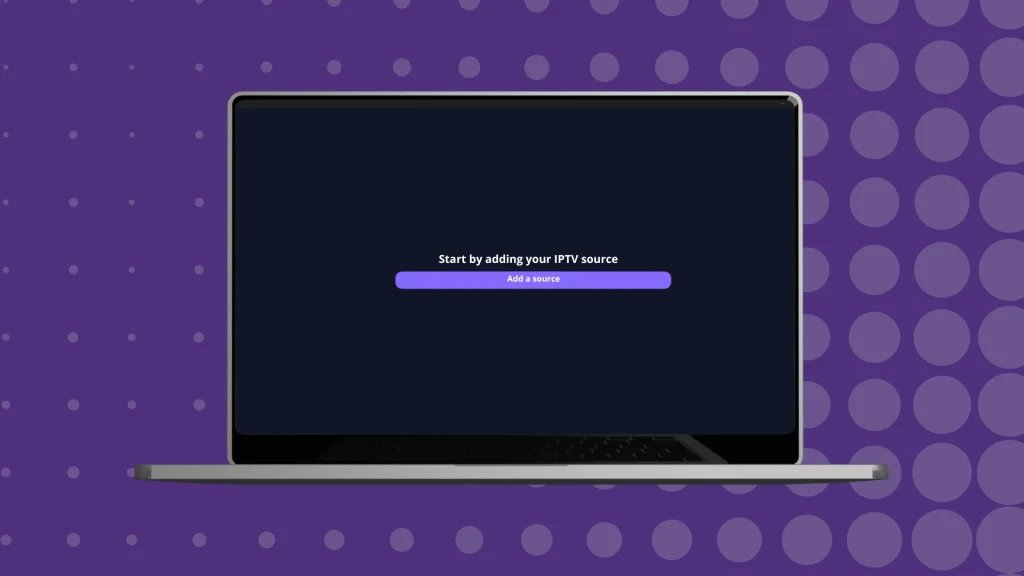
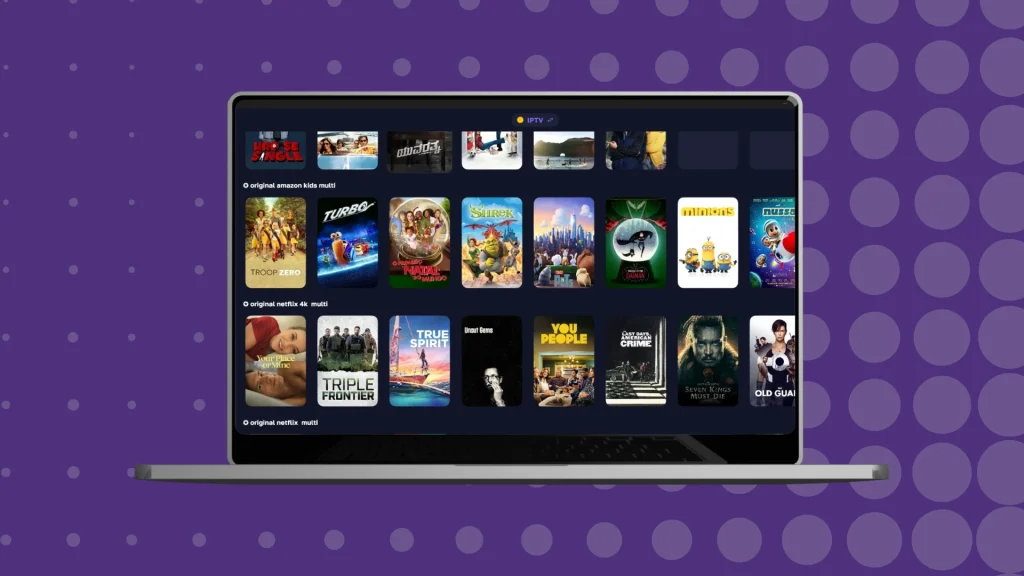
Right after entering the details, your IPTV content will appear immediately. What I personally like about this application is that it is simple, practical, and very easy to use. It organizes your live channels, movies, and series clearly, so you can enjoy IPTV on your Windows device without any complications.
Best Android IPTV Applications
TiviMate
TiviMate is an easy-to-use and straightforward IPTV application designed primarily for Android TV and Android devices, and it also works efficiently on smart TV boxes and set-top box systems. The app supports multiple playlist formats, including M3U, and organizes your live TV channels using the EPG (Electronic Program Guide) for a clean, structured layout.
Its interface is minimalistic and doesn’t rely on unnecessary colors or complex menus. One helpful feature is that it remembers the last live channel, movie, or series you were watching, so you can resume exactly where you left off.
Another strong advantage of TiviMate is that it contains very few ads, even in its free version. This makes the viewing experience much more comfortable compared to other iptv apps. The app runs smoothly and rarely freezes, and it performs well even if your Wi-Fi or internet connection isn’t extremely fast, making it a reliable option for everyday IPTV watching.
IPTV Smarters Pro
IPTV Smarters Pro is one of the most flexible and user-friendly streaming service applications. It works smoothly once you enter your M3U playlist or Xtream Codes login provided by your iptv service provider, allowing you to easily access your live TV channels, streams, and on-demand content depending on your iptv subscription.
The app is fully compatible with Android TV, smart TV, and Android phones. It features a clean and relatively simple interface, making getting started with IPTV quick and straightforward. In addition, IPTV Smarters Pro includes valuable features such as parental control, the ability to add favorites, and support for multiple playlists, which is ideal if you want to use more than one iptv provider’s service.
Overall, IPTV Smarters Pro stands as a versatile media player – IPTV, offering an organized and comfortable viewing experience whether you’re watching live channels, browsing your EPG, or exploring VOD libraries.
Alternatively, you can find 6 of The Best IPTV Apps for Android
Best iOS IPTV Applications
Ibo Player
Ibo Player offers a modern, comfortable viewing experience, but it’s important to note that the app does not provide channels or content on its own. Instead, it acts as a media player that allows you to load and play the iptv subscription content supplied by your iptv service provider.
This application is ideal for users who want high stability and the ability to test or switch between multiple M3U playlists or login credentials without issues. Whether you’re watching IPTV on your Apple TV, iPhone, or iPad, Ibo Player delivers a smooth experience—making it especially suitable for people who want to enjoy their favorite shows on whichever device they prefer.
It provides reliable performance, straightforward navigation, and organized access to live channels, VOD movies and series, and other iptv content, which makes it an excellent choice for those who value flexibility and stability in their digital entertainment setup.
We recommend checking our IBO Player Playlist Setup Guide
GSE IPTV
GSE IPTV is considered an innovative and well-designed media player for organizing and displaying the IPTV content from your iptv subscription. It presents your channels in a clean and elegant interface—almost like having a smart TV layout installed directly on your iPhone, iPad, or Apple TV. The colors and menus are visually comfortable and easy to navigate, and the application automatically organizes live channels by category, making browsing intuitive and straightforward.
One of the standout features of GSE IPTV is the ability to sync your playlists across multiple devices. So, if you have more than one device, you can use the same IPTV subscription on both without complications.
What makes this app enjoyable is its lack of unnecessary complexity. It also does not overload you with intrusive ads and gives you the freedom to customize the layout and viewing style to your preference. You can organize your playlists, switch between live channels and VOD libraries, and watch IPTV however you like—smoothly, with no pressure and no restrictions.
To delve deeper, find 6+ Best IPTV Apps for iPhone, IOS, and More
Best Windows IPTV Applications
Zen Player
Zen Player is considered one of the best IPTV applications available for Windows, and many users describe it as “the smartest and most elegant IPTV player”. It offers several advanced features, including support for multiple languages (subtitles and audio tracks) and automatic sorting of channels and IPTV content by quality, category, and type.
The interface is clean, modern, and comfortable on the eyes—everything is neatly arranged and easy to navigate. One of its most substantial advantages is the continuity feature: even if you close the application and reopen it later, Zen Player lets you resume watching your movie, series, or live channel from exactly where you left off, without having to search again.
Zen Player is an excellent choice for users who want a smooth IPTV experience, organized live channels, and an elegant interface on their Windows device.
XCiptv
XCIPTV allows you to watch live TV channels, movies, and series on demand using the M3U or Xtream Codes provided by your iptv service provider. The application features a straightforward interface that makes it easy to switch between channels, VOD content, and settings in a comfortable, intuitive way.
It also offers a high level of customization flexibility. You can adjust the layout, organize your iptv channels, and personalize the interface to match your preferred style. XCIPTV keeps the configuration options straightforward—there are only a few advanced settings, so the app remains easy to use while still offering control where it matters.
This makes it an excellent choice for Android TV, smart TV, and set-top box users who want a smooth IPTV experience, straightforward navigation, and the ability to arrange their content without complexity.
Tips to Improve Streaming Quality
To maintain high streaming quality while watching IPTV, follow a few simple steps. First, whenever possible, use a wired connection instead of Wi-Fi, as an Ethernet cable provides a more stable internet connection and is less prone to interference.
Secondly, try closing any background applications or devices that may be consuming bandwidth, so your iptv service gets the maximum connection speed.
Next, if your iptv application provides multiple servers or playlists, try switching between them and choose the one that offers the best stability and fastest response for your location.
Finally, you can also enhance your streaming performance by changing your DNS settings to faster alternatives such as Google DNS or Cloudflare DNS. This can help reduce buffering and improve overall smoothness while streaming live iptv channels and on-demand content.
Conclusion
In this guide, we have shared all the essential steps for setting up IPTV on Android TV, iOS, and Windows, regardless of the operating system you use. We also introduced some of the best IPTV apps and provided practical tips to help you enjoy a smooth, high-quality IPTV experience.
Feel free to share your thoughts in the comments, and if you have any questions or need help with anything related to your iptv setup guide, do not hesitate to reach out. We are always happy to assist.

I’m Marin Key, a passionate English content writer with a background in computer science. I enjoy creating clear and engaging articles, especially on topics related to movies, TV series, and technology.